


This month I am writing on a topic recommended by you! We’ve had a lot of submissions come in asking about how to use automated rules along with requests to provide examples and this post should give you what you want. When the new tool became available in mid February, I wrote a guest post on WordStream that provided a quick guide to Adwords automated rules. Over the past month I’ve had more time to delve into all that automated rules has to offer.
I want to say that I don’t think automated rules will ever take the place of getting in there yourself and making changes to your account. They are extremely valuable though if you don’t have time to manage your account daily, or if there are changes that need to be made at inopportune times. This post will walk you through the process of setting up automated rules to enhance account management.
Automated Rules Overview
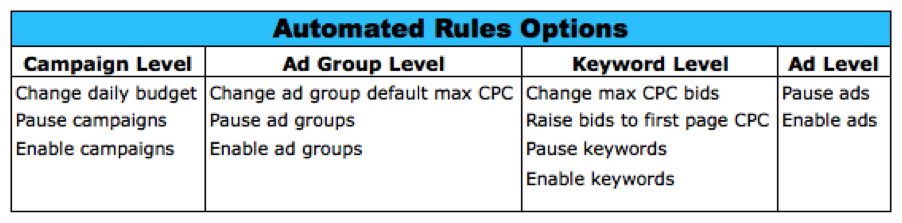
The table below shows the different changes you can automate across the four account levels.
I work with a retail client who has a limited budget, so it’s very important that we spend the budget at the right times to drive the most sales. Sales for the client increase substantially on the weekends so I want to use campaign automated rules to increase budgets during peak sales days.
Changing Budgets
Since sales spike during the weekends, I want to increase the daily budgets for my campaigns on Saturdays and Sundays. Instead of changing the budget myself whenever it is I decide to wake up on Saturday, I can tell Google to do it for me.
Select the campaigns for which you want to change the budgets then go to Automate and select “Change daily budget when…”
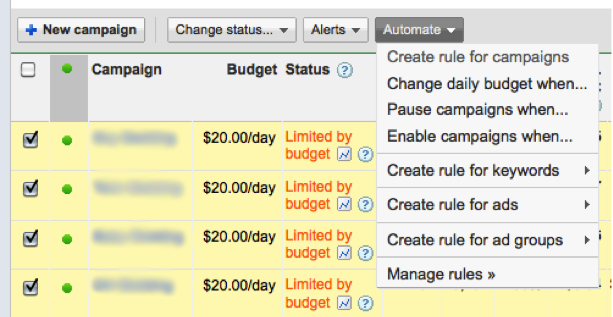
The green box below will open up for you to create your rule.
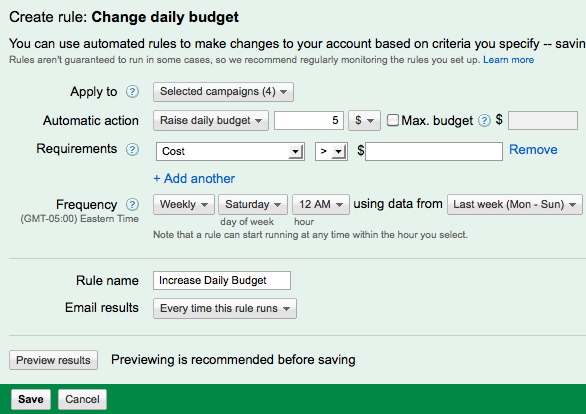
Step 1: Apply Your Rule. Decide which campaigns the rule will apply to. You can change the budget for selected, all enabled, or all but deleted campaigns. I chose my top converting campaigns so I want apply it to just the selected campaigns.
Step 2: Set The Automatic Action. What change do you want to happen? I want to increase my weekend budgets by $5.oo. If you have a lot of campaigns which have budgets that change frequently, you might want to select a maximum budget. By setting a maximum budget, you make sure that your rule will not set a new budget that exceeds the maximum you want to spend in a day. Keep in mind that the rule will still run, but only budgets that stay within your maximum will be updated.
Step 3: Set Requirements. You can add requirements so that your rule only runs when specific criteria are met. For example, if I only wanted to increase weekend budgets if my selected campaigns converted more than 10 times I can require that conversions must be greater than 10. For now, I’m going to leave requirements blank and increase the selected campaign budgets no matter what.
Step 4: Set The Frequency. You can set the rule to occur once, daily, weekly, or monthly. This is going to be a weekly change since I want budgets to increase every weekend. For the day I chose Saturday and I set the start time to 12am. If you’ve set requirements, this is where you select how much data Adwords should consider to determine if a campaign meets the requirement. Since I want all my selected campaigns to increase in budget, I’m going to leave this field as is.
Step 5: Name Your Rule. Give you rule a name that will make it easy for you to identify. If you have multiple rules running in an account or if there are multiple people working in an account, it can become difficult to keep track of which rules do what. Since I’m the only one in this account titling it “Increase Daily Budget” is specific enough for me.
Step 6: Set Up Email Notifications. I recommend sending an email every time a rule runs so you can make sure it’s activated at the proper times.
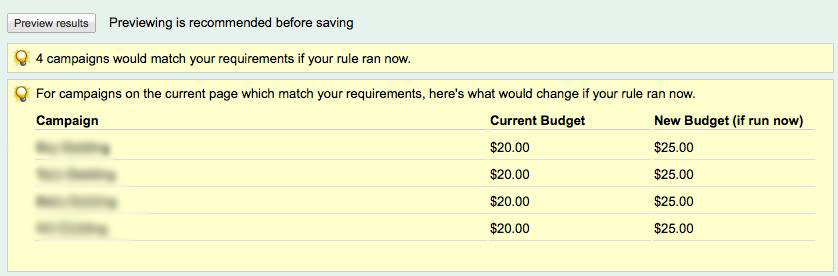
Step 7: Preview Changes. Always, always, always, ALWAYS preview your changes. This is how I realized I had set my budgets to increase BY $25.00, not increase TO $25.00 the first time I set up the rule. When you preview your changes you’ll see what the changes would look like if the rule were to run now.
Step 8: Save Your Rule. All that’s left to do is click save and your rule is scheduled to run.
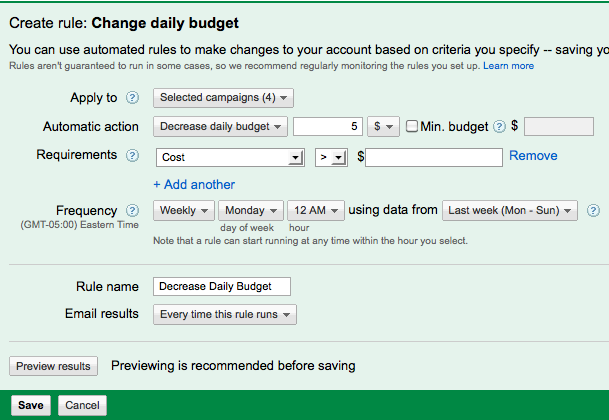
So we’re all done now right? Wrong. If you are increasing your budget just during a specific time period you also have to set up a rule telling Adwords when to decrease it. Below is a screen shot of the automated rule settings to decrease daily budgets back to the original amount.
Managing Automated Rules
You can view and manage all your automated rules in the Control panel and library. Note that if you edit any of the rules it will create a new rule and the old one will be deleted. Each user is also only able to have ten active rules running at a time so make sure to pause active rules you don’t want running anymore.
Hopefully you’ve got a better understanding of how to implement Adwords automatic rules into your accounts. If you have any questions about the types of automatic rules or how to set them up, please post below!
